The best IPTV app for your Fire TV Stick is the one that works on your exact model, accepts your subscription details and feels comfortable with a remote. Downloading several apps at random can leave you with extra activation screens and no clearer idea of what to buy.
Check your Fire TV model first
Fire TV is a product family, not a guarantee that every device installs the same applications. Check the model and operating system in your device information, then compare it with Amazon's Fire TV platform documentation. Ask support if the model is unclear before purchasing an app or subscription.
This guide covers compatible Fire OS devices. Do not follow Android APK instructions on a Vega OS model. Store availability and installation permissions can also change with software updates; if a setting is missing, stop and confirm the supported route rather than disabling unrelated security protections.
Three apps, three reasons to choose
We supply Nitro4K and TVURO, so this is a practical comparison of our setup options, not an independent benchmark or a ranking based on measured speed.
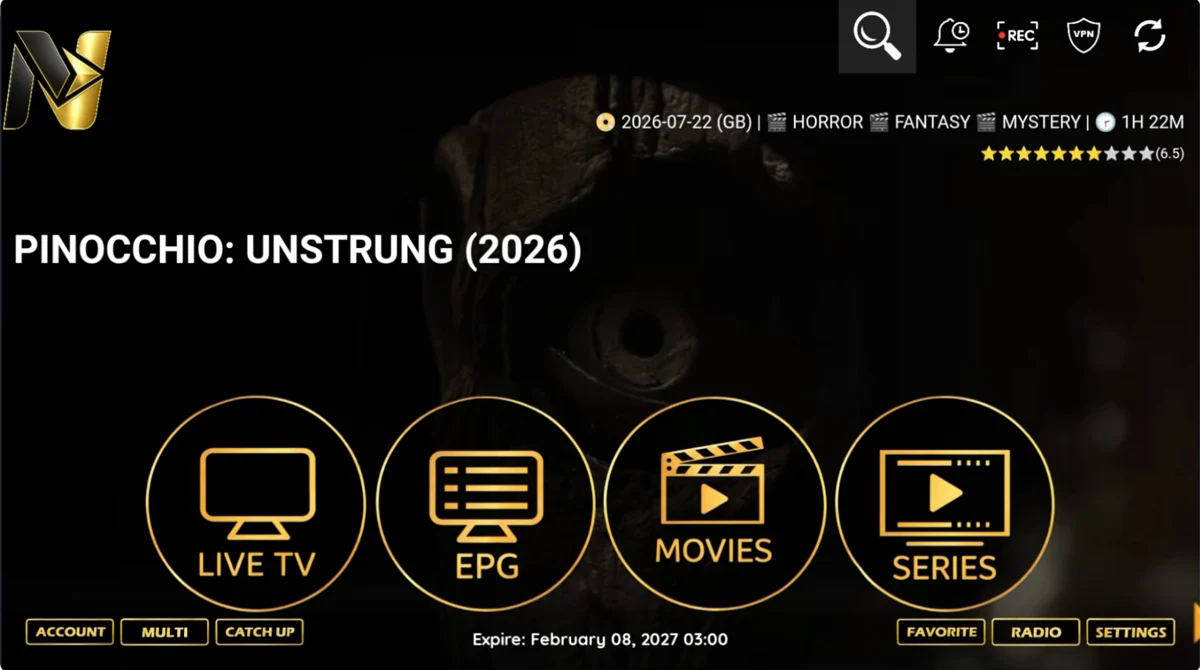
- Nitro4K: a familiar live-TV layout
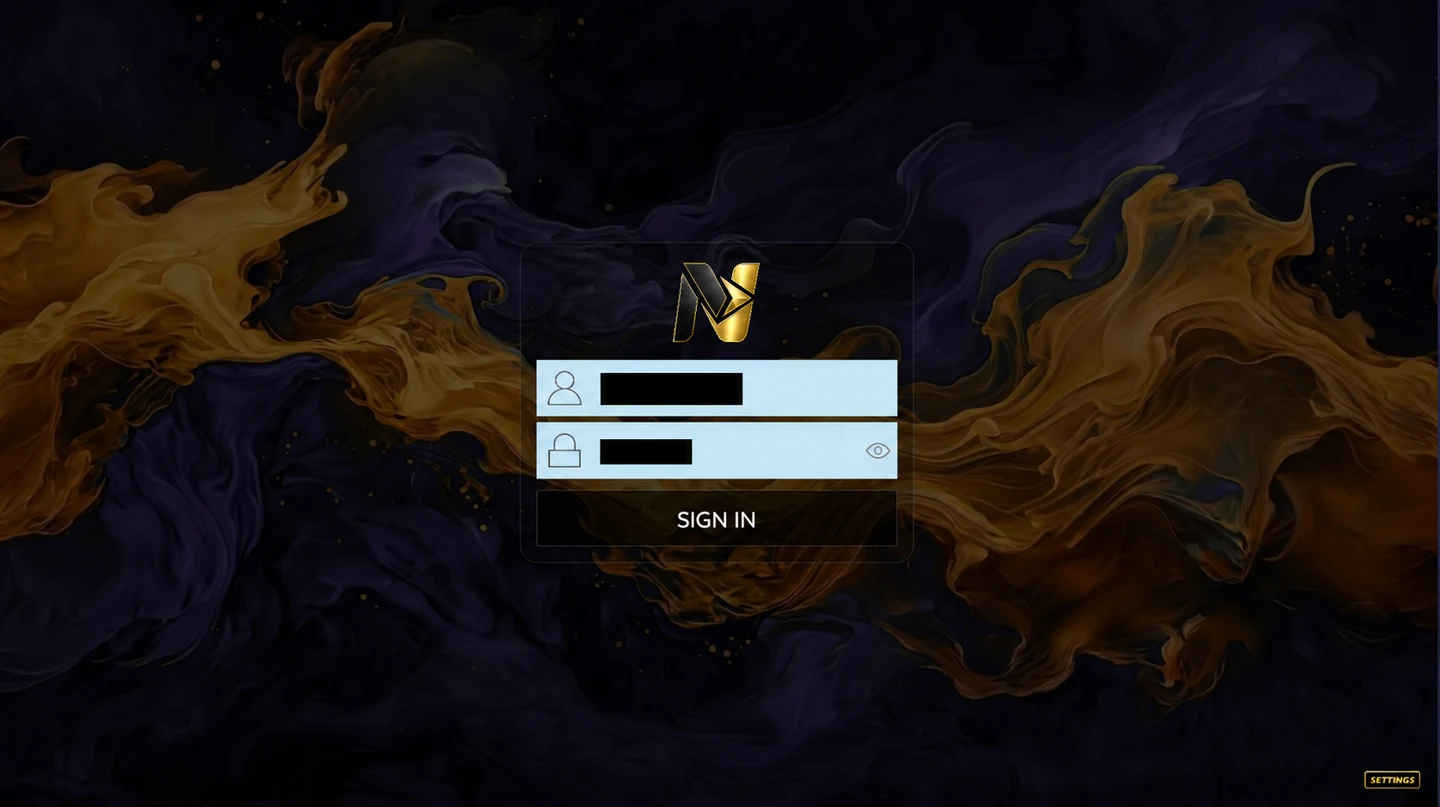
- Choose it when you want our team to help with a username-and-password setup and a home screen organised around Live TV, EPG, Movies and Series. Its trade-off is that it is our service-specific route, not a universal recommendation for every provider or device.
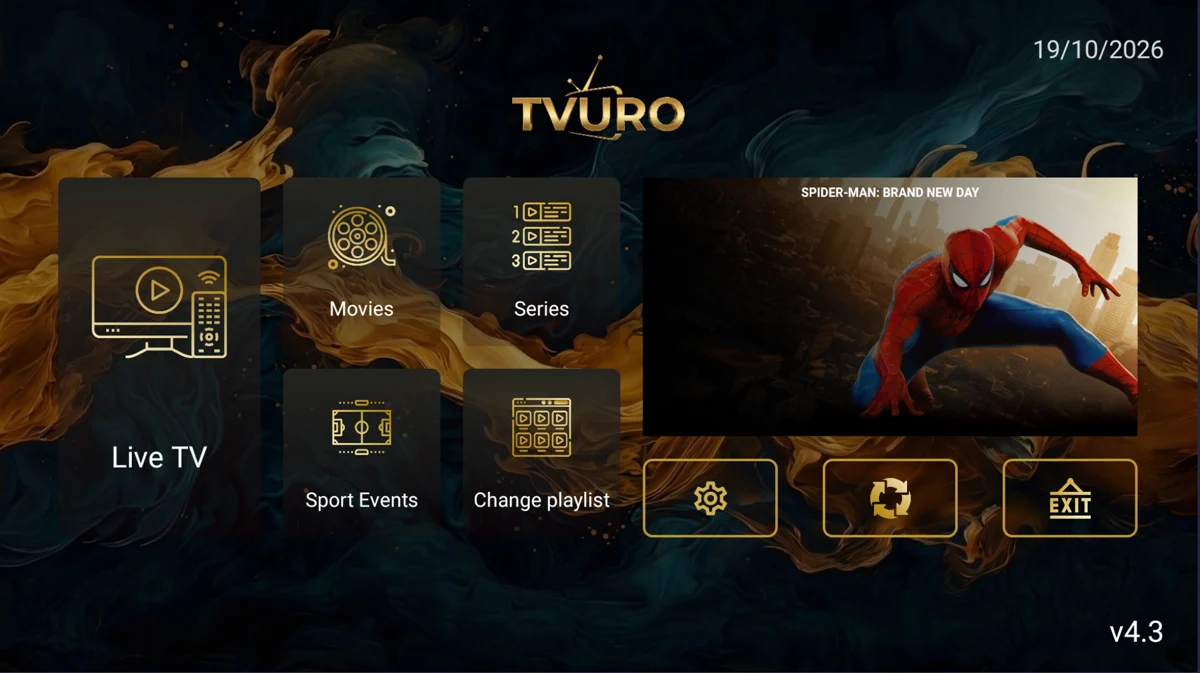
- TVURO: an alternative home-screen layout
- Choose it if you prefer the supplied Live TV, Movies, Series and Sport Events navigation. Ask the team which credentials to use. A different layout does not increase your subscription connections or guarantee that every pictured title is available.
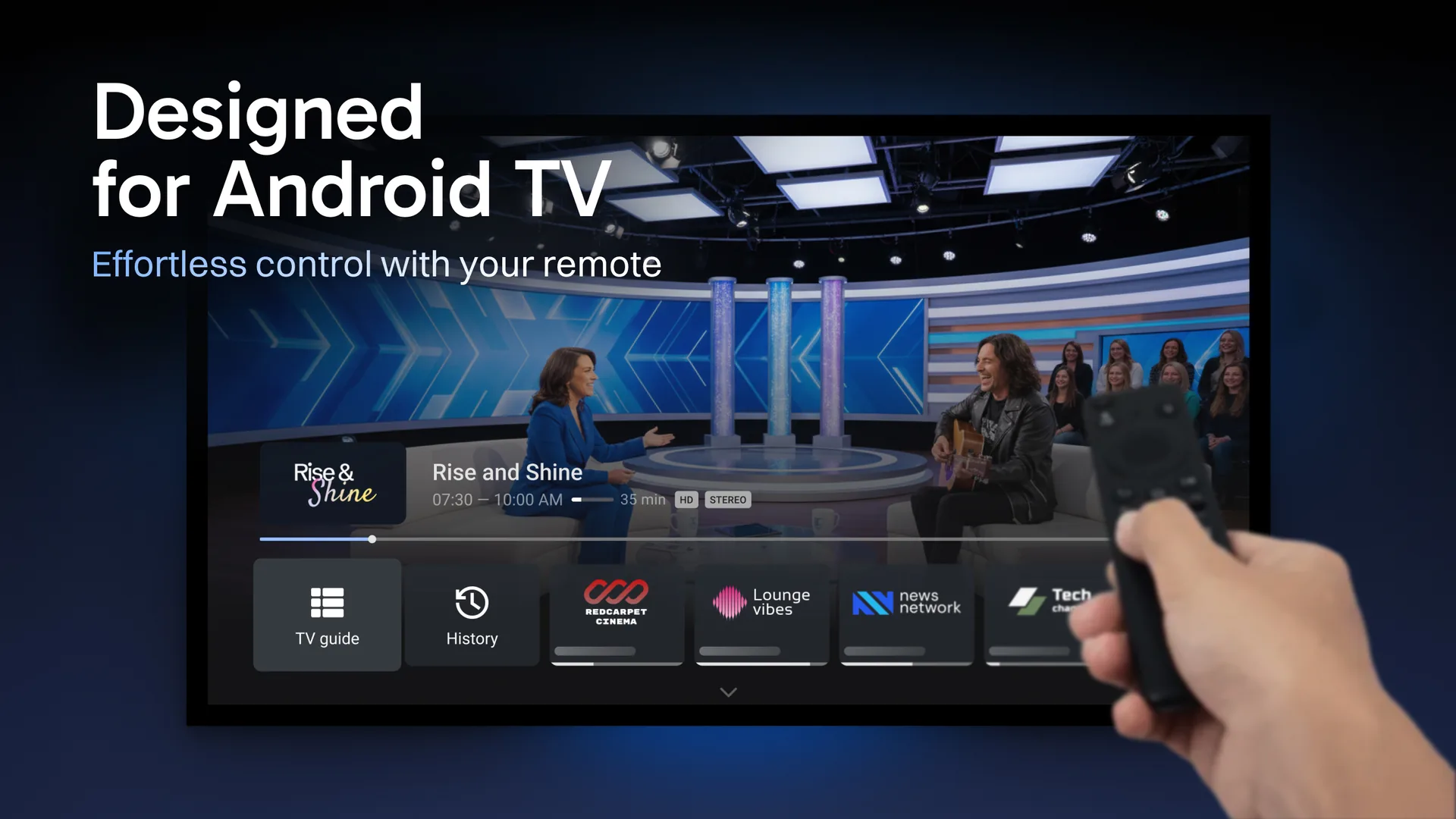
- TiviMate: an independent TV player
- Choose it when you want a remote-oriented player for your own supported playlist. The official listing describes its Android TV focus. It does not include a subscription or channels, and Premium player features may require a separate purchase.
Install from a known source
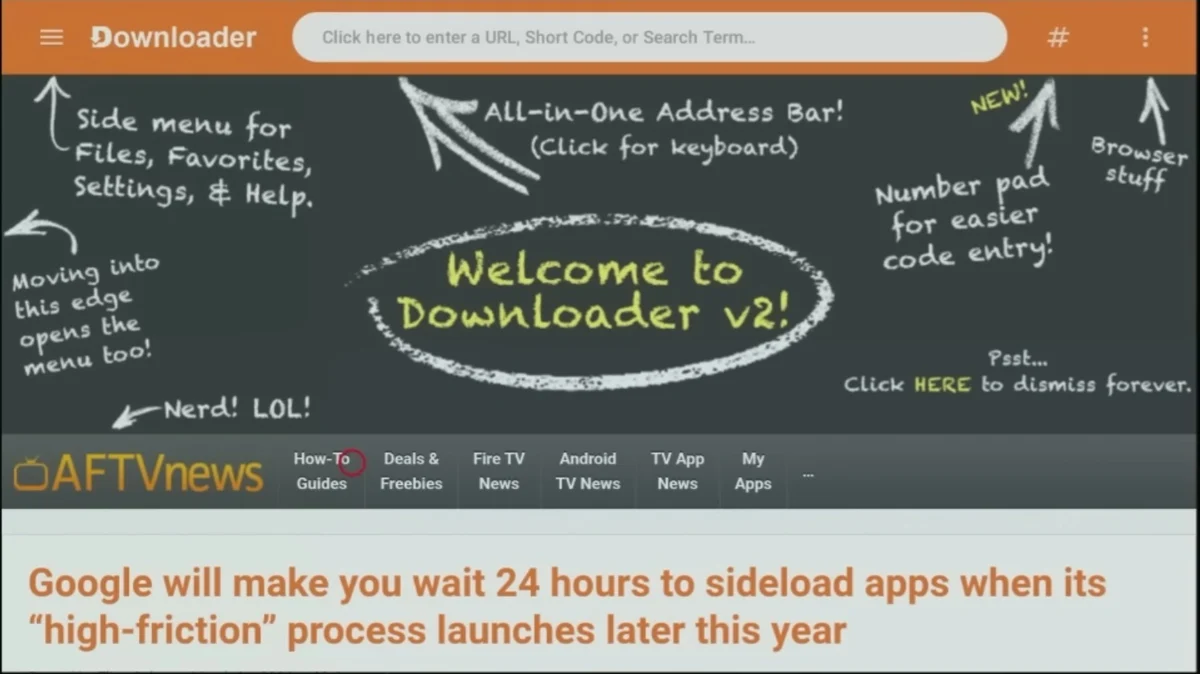
For Nitro4K or TVURO, open Downloader by AFTVnews on your supported Fire OS device. Enter 7503723 for Nitro4K or 6174786 for TVURO in its address bar and choose Go. Use only one code at a time. Check the application name before accepting installation.
For TiviMate, use the publisher's official download page; its Downloader code is 272483. Avoid similarly named apps and modified APKs. Our illustrated Downloader code guide explains the distinction between downloading an app and activating your service, while the Fire TV tutorial covers the device-specific installation screens.
Match the login to your chosen app
Nitro4K and TVURO use the username and password supplied for your setup. TiviMate may instead ask for an Xtream Codes server URL, username and password, or a supported playlist URL. Request the correct format from support; a Downloader code is not a login, playlist or subscription.
Try your remote navigation, programme guide and an authorised stream before making unnecessary app changes. If playback fails, keep the exact error and use the buffering and connection checklist. Switching players alone cannot fix every network or source problem.
Before you pay
- Confirm the exact Fire TV model and supported installation route.
- Check any separate player activation or Premium fee.
- Choose simultaneous connections, not the number of installed apps.
- Ask about the channels and regions that matter to you.
Use only content you are entitled to access. When your device and app are settled, compare the Nitro4K subscription plans. There is no need to buy another streaming box solely because an app name looks unfamiliar.
 Ask about my setup