Installed an app but still have nothing to watch? Or seeing a second payment screen after buying a subscription? Knowing which purchase does what helps you avoid paying for the wrong thing and makes your Nitro4K setup easier to arrange.
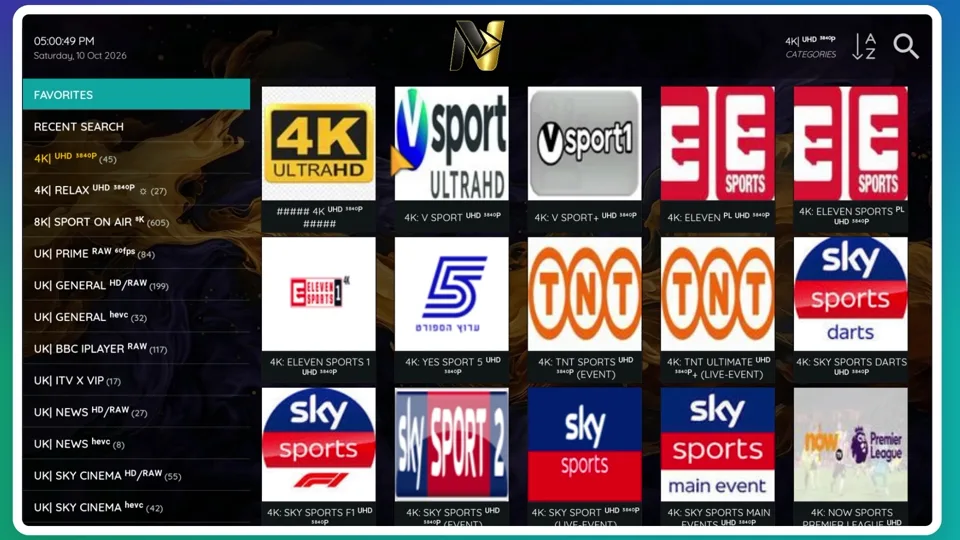
The player and the service do different jobs
An IPTV player is the application you use to open a playlist, browse a guide and play a stream. A subscription supplies the access details and service terms. Installing a player does not, by itself, create an active subscription or add channels.
This distinction matters at checkout. TiviMate's official app listing explicitly separates player features from content: a Premium upgrade unlocks app features, not a channel package. Other players have their own activation policies. Confirm any separate app fee before you pay, and do not assume it is included in your Nitro4K plan.
Use the login method your app requests
When arranging your Nitro4K setup, tell the team the device and the exact player name. Ask which of the following methods it needs. These details are not interchangeable, even if two apps have similar-looking login screens.
- Xtream Codes login
- A server URL, username and password entered into their corresponding fields. Copy the supplied details carefully, including the URL scheme and any port. Do not enter the full playlist link into a field that expects only the server URL.
- M3U playlist
- A playlist URL or file supported by the player. A supplied URL may include account credentials, so treat the whole address as private. Ask support whether a separate programme-guide URL is needed for your setup.
- App MAC address and device key
- Some players display these identifiers for playlist management. Send the identifiers shown inside the supported app privately to Nitro4K support for remote setup. They are not the same as your Wi-Fi password, and the app MAC may differ from the hardware network address.
Choose a player for your actual device
Nitro4K and TVURO have installation routes for compatible Fire OS and Android devices. The illustrated tutorials include their supplied Downloader codes. Check the Fire TV operating system before using Android installation instructions.
For Apple devices, use an appropriate Apple-platform player from its official store listing. Do not assume that a similarly named app is the same product. For Smart TVs, check the television model and app-store availability before selecting a player or paying for its activation.
The Apple guide, Smart TV guide and TiviMate guide separate these routes. Use only content you are entitled to access; a player's availability does not establish rights to a particular stream.
Count simultaneous streams, not app icons
Installing a player on several devices does not increase the simultaneous connections included in your subscription. Decide how many screens your household will actually use at the same time, then select that connection count on the pricing page.
Player activation limits and subscription connection limits can also be different. Check each separately. If one screen works and a second fails, note whether the first was playing at the time and share that observation with support instead of repeatedly changing passwords.
Keep the right details ready
- Your device model and operating system.
- The exact app name and, if visible, its version.
- Your order reference and subscription duration.
- The login method requested by the app, without posting credentials publicly.
Contact Telegram support or WhatsApp if any field is unclear. Do not send your Apple, Google or Amazon account password. After setup, retain your subscription details privately so the team can help with renewal or a device change.
 Ask about my app